Can't tag a company or people on LinkedIn? Or worse—tagged the wrong profile and now it looks awkward?
Here's what usually goes wrong:
- You tag a person after posting, but they don't get notified.
- You overload your post with mentions, and it gets hidden by the algorithm
- Someone tags you publicly—and you don't even know you can remove it.
Mentioning on LinkedIn is simple. But doing it wrong costs visibility, trust, and sometimes… silence from the people you wanted to respond to. We'll show you how to:
✅ Mention LinkedIn profiles the right way
✅ Fix a post if you forgot to tag someone
✅ Control when you get tagged
Scroll on—quick tips, zero filler.
What Does Tagging Mean on LinkedIn?
Tagging (also called mentioning) is when you include someone's LinkedIn profile in your post by using the "@" symbol. That tag becomes clickable and notifies the person you've mentioned.
According to LinkedIn's official tagging guidelines, when you tag or mention someone in a post:
- The post behaves like any other update.
- The tagged person usually gets notified (unless they've turned that off)
- Their network might see the post.
- You can control who sees the post using visibility settings.
If the post isn't set to Public, tags outside your selected audience will be removed.
How to Tag Someone in a LinkedIn Post?
You don't need to be connected to someone to mention them in a post or comment. Additionally, you can mention someone on LinkedIn in four places:
- Posts
- Comments
- Replies
- Photo captions
And you can do it from a desktop or mobile device.
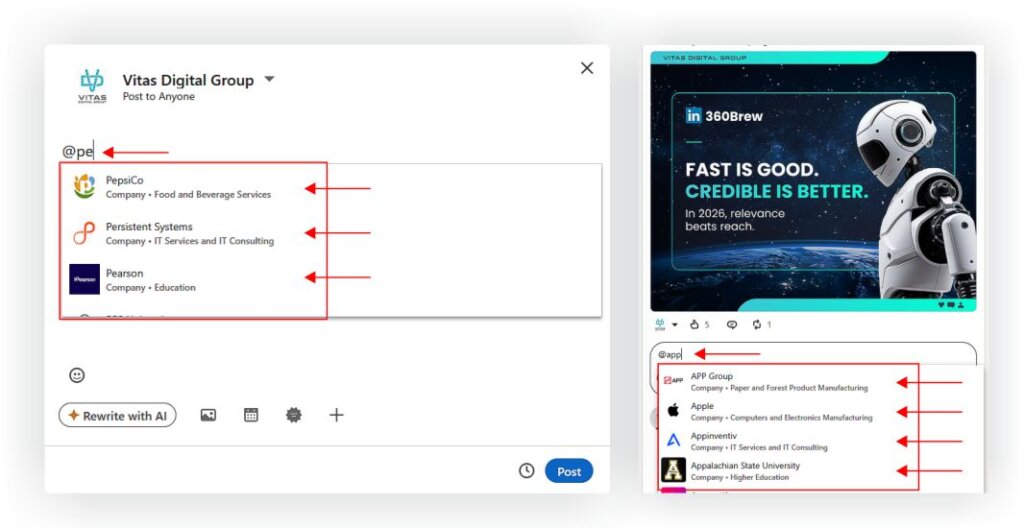
On Desktop:
- Start a post or comment.
- Type @, then start typing the person's name.
- Choose the correct profile from the dropdown.
Finish typing your message and click Post or Comment.
On Mobile (App):
Same steps apply:
- Tap Post or Comment.
- Type @name, select from the list.
- Complete your message and hit Post or Send.
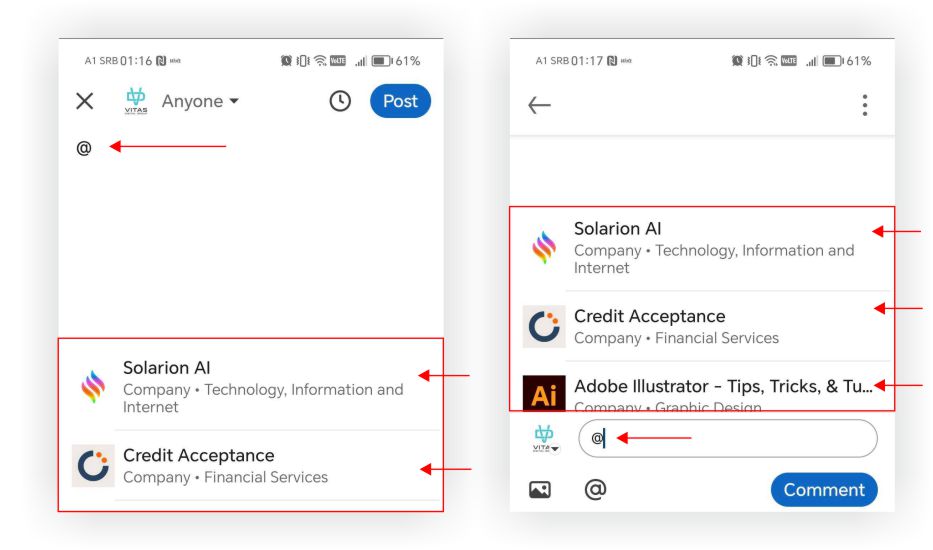
Photo Mentions:
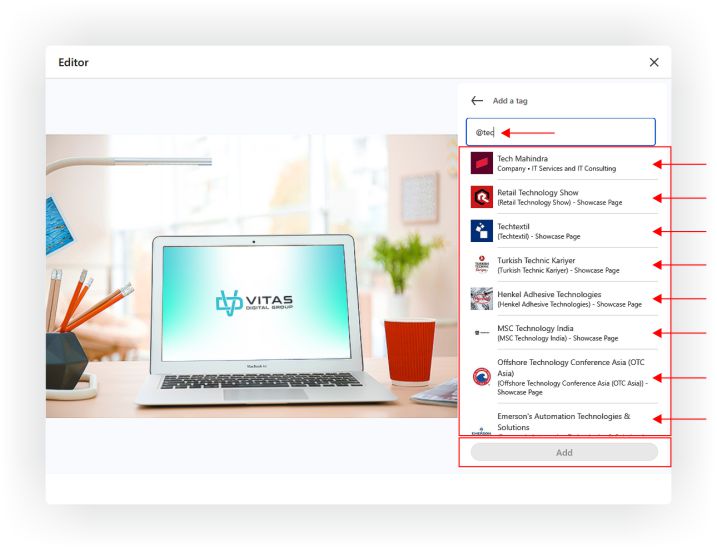
- Upload your image to a post.
- In the caption or text field, type @ and mention people as you would in any other post.
- There is no way to "tag" someone directly on the image like Instagram—it's all in the text.
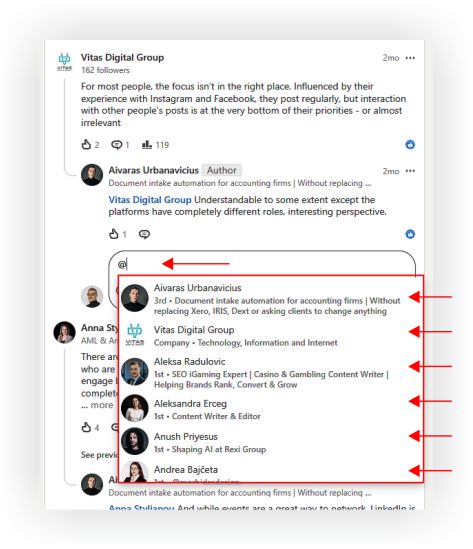
Replies to Comments:
You can also mention people in replies:
- Click Reply under someone's comment.
- Type @name, select the profile.
- Post your reply—they'll be notified.
Mentions Inside LinkedIn Articles
You can mention people and company pages in LinkedIn Articles the same way as in posts—type @name and select the profile/page from the dropdown. If they're taggable, their name will link to their profile, and they'll get a notification.
So, where mentions work in articles:
- Anywhere in the article body
- In captions under images
- In LinkedIn newsletter editions (if you're publishing to subscribers)
- In LinkedIn embedded posts (e.g., referencing a LinkedIn post that already mentions someone)
If you were using our social media management services, we'd definitely recommend strategic LinkedIn mentions because they can increase article reach, improve engagement, and help your content reach more relevant industry audiences organically.
What If the Name Doesn't Show Up?
If they have a common name, type their name plus company (e.g., @John Smith Microsoft). LinkedIn will refine the suggestions.
If you still don't see them, they might:
- Have mentions disabled in their settings
- Not allow mentions from people outside their network.
- Be temporarily blocked from tagging due to spam filters.
Can You Mention People Who Aren't Connections?
Yes. You don't need to be connected to someone to mention them in a post or comment.
But LinkedIn does monitor unusual tagging behavior, and might limit your ability to mention people you're not connected to if it looks spammy.
Editing Mentions After Posting
You can always go back and edit a post or comment to add or remove mentions:
- Click the three dots on your post or comment.
- Select Edit.
- Add the @mention, then save changes.
They'll get notified—even if it wasn't there originally.
Need Further Help?
If you have questions or if something's unclear, reach out. Contact us, we're here to help.